

Set up your VPN, step by step.
Install the client, import a device profile and verify the connection. This guide describes the post-activation workflow; pending plans do not currently deliver profiles or QR codes.
- 3 separate device profiles
- 300 GB monthly traffic
- Turkish setup support
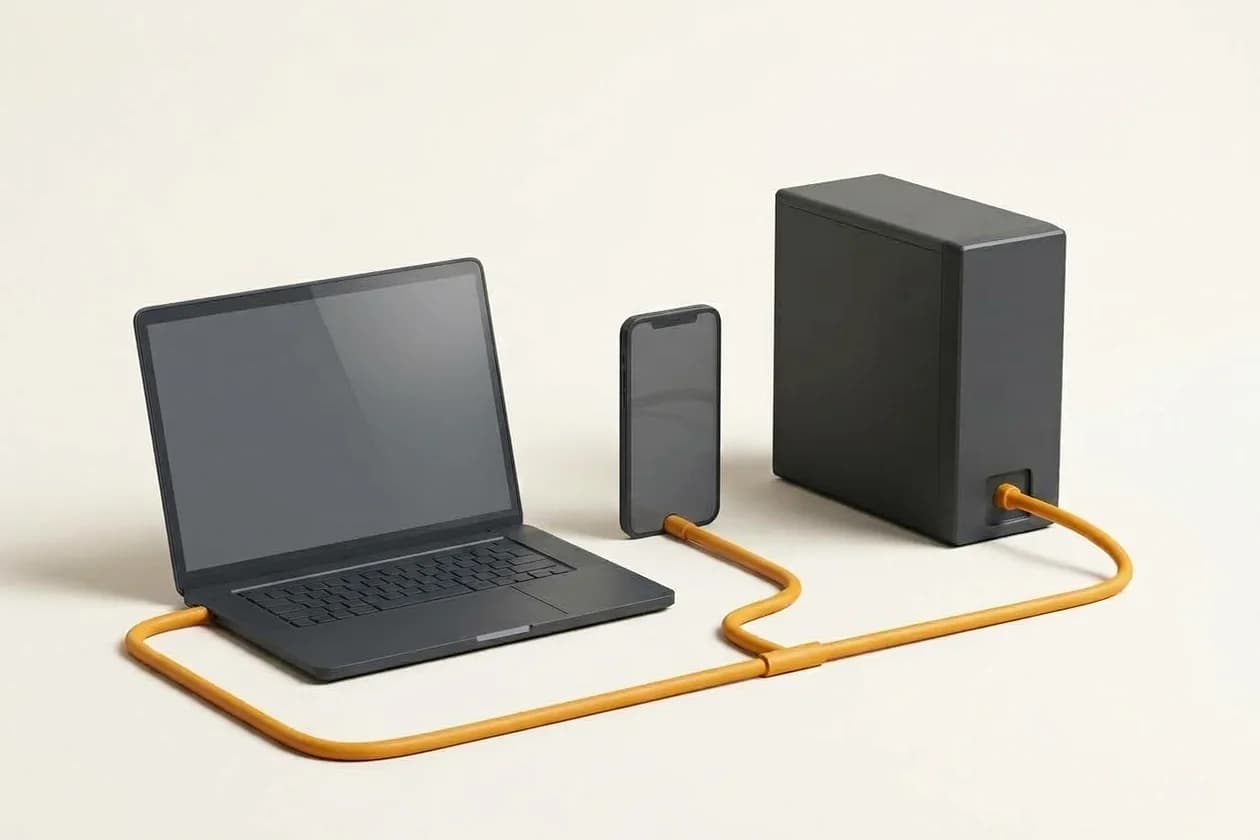
What will you use your VPN for?
Choose your use case to see the key difference between the two plans.
Compare prices directly below or choose a plan here based on your intended use.
VPN plans and pricing
Choose shared VPN for everyday access or Dedicated IP VPN for work resources that need an account-specific IP. Both plans propose three profiles and a shared 300 GB monthly account pool.
TeknoWeb VPN
Shared exit for everyday use
Proposed monthly price
TRY 199.00/ month
Connect using your own WireGuard keys while sharing the outbound IPv4 with other service users.
- Shared outbound IPv4
- 3 separate device profiles
- 300 GB monthly account pool
- Helsinki data-centre exit
- Turkish setup and connection support
Preparing for launch · Your selected plan is carried into the contact form.
TeknoWeb Dedicated IP VPN
For work resources with IP allowlists
Proposed monthly price
TRY 599.00/ month
Use an outbound IPv4 assigned exclusively to your account for consistent access to panels, SSH and work resources.
- Exclusive fixed outbound IPv4
- 3 separate device profiles
- 300 GB monthly account pool
- Helsinki data-centre exit
- Turkish setup and connection support
Preparing for launch · Your selected plan is carried into the contact form.
Prices for pending plans are proposed VAT-inclusive amounts, not currently purchasable offers. Taxes, billing period and the final total will be shown when ordering opens.
Know exactly what your VPN includes.
An exit IP that fits your needs
Choose a shared exit for everyday use or an exclusive IPv4 for work resources with IP allowlists. Understand the difference before purchasing.
A separate profile for each device
Three connection profiles are planned for supported phones, computers and other devices. Separate keys make device replacement and access revocation easier.
Choose with a clear scope
The proposed 300 GB monthly pool is shared across account profiles. Helsinki location, device count and setup support are stated alongside each plan.
See the path your connection takes.
Switch between shared and dedicated IP examples. Explore the relationship between devices, the encrypted tunnel and internet exit without a live connection.
In this example, multiple customers share the same outbound internet IPv4.
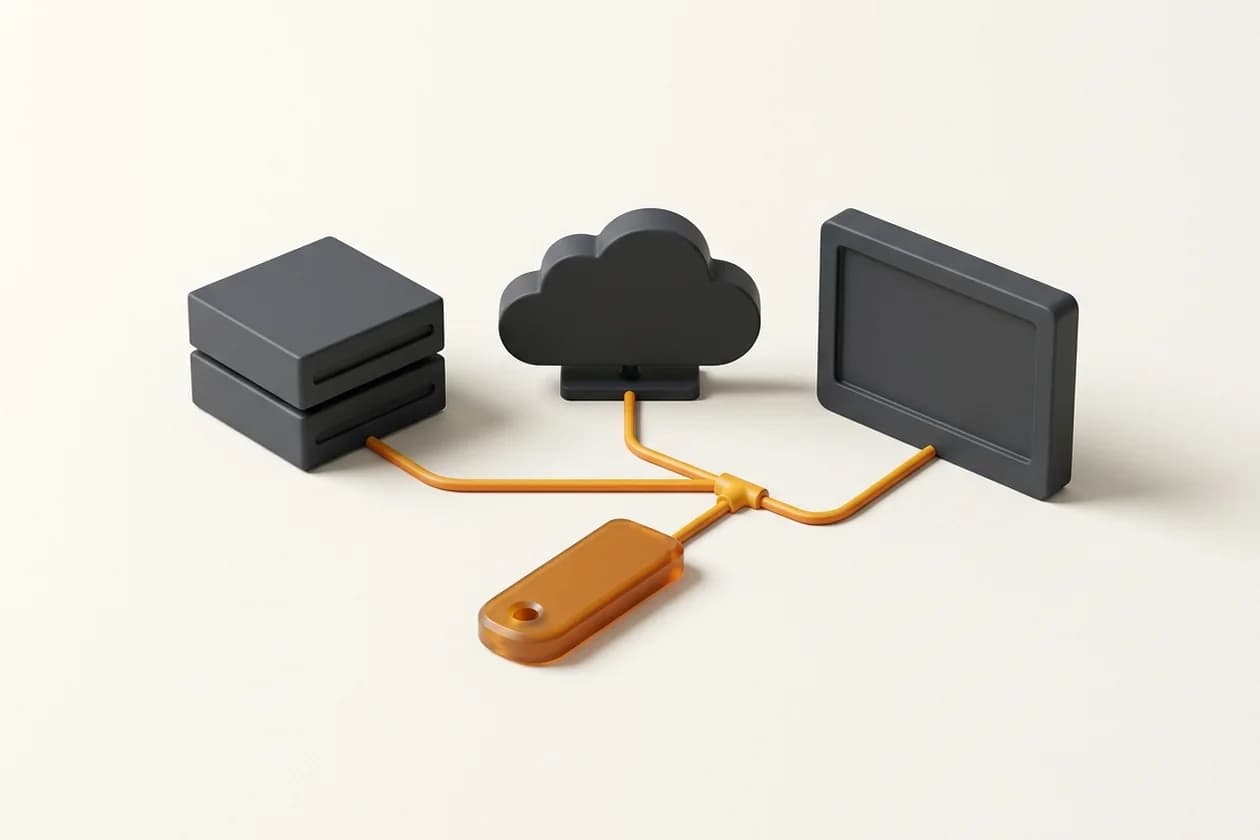
One exit IP. Clearly defined work access.
Plan an account-specific exit address for SSH, administrative panels and cloud resources. Destination allowlists and user authentication require separate configuration; team management and private LAN access are not included in the standard plan.
Dedicated IP VPNWireGuard setup for your device
Windows and macOS: import a configuration file
Install the official client. After service activation, obtain the computer-specific profile through the secure delivery channel and import it using the file option. Give the tunnel a recognisable name. Request a separate profile instead of copying another device’s file. The configuration contains a private key: do not forward it or store it publicly. Opening the app and activating the tunnel are separate actions.
Android and iPhone: add your device’s QR code
Install WireGuard from an official store link and add a tunnel. Scan the device-specific QR code if supported, or import the configuration file. Review the operating system’s VPN permission and activate the connection. A QR screenshot contains credentials too; do not post it in public chats or forums. When changing phones, evaluate revoking the old key. Menu names depend on app and OS versions.
Check the exit IP and DNS
After activation, verify the outbound address using a trusted method. For a dedicated plan, it should match the assigned IP. Test the intended panel or SSH destination, then check its allowlist and authentication separately. Review DNS and IPv6 behaviour too. Working internet access does not prove that every route is tunnelled or that DNS cannot leak. Test disconnection behaviour before depending on the VPN.
If the connection fails
Check normal internet connectivity, correct date and time and the selected profile. Compare Wi-Fi with mobile data to identify network-specific restrictions. UDP blocking, an incorrect endpoint, local security software or routing can cause problems. A support request should include the OS, error and affected networks, not a private key or full QR code. Preserve alternative administrative access before changing work-resource firewall rules.
Shared IP or your own dedicated IP?
Both plans provide a VPN connection. A dedicated IP does not mean the server’s CPU and memory are dedicated to you.
| Service feature | Shared VPN | Dedicated IP VPN |
|---|---|---|
| Outbound IPv4 | Shared with other customers | Assigned exclusively to your account |
| IP allowlisting | Does not distinguish your account | An account-specific exit address |
| Device profiles | 3 separate keys | 3 separate keys |
| Monthly traffic | 300 GB across the account | 300 GB across the account |
| Location and protocol | Helsinki · WireGuard | Helsinki · WireGuard |
| Dedicated physical server | Not included | Not included |
Before choosing your plan
300 GB combines uploads and downloads across all profiles; it is not a separate allowance per device. Three profiles are not a three-person team licence. Speed depends on your connection, route and concurrent usage. An IP allowlist does not replace authentication or a firewall.
App, profile, connection: three steps.
- 1
Install the app
Install the official WireGuard client for your operating system. Verify the source and publisher.
- 2
Add a device profile
After activation, import the device-specific file or scan a QR code in a supported mobile client. Keep your keys private.
- 3
Verify the connection
Activate the tunnel and check the exit IP, DNS behaviour and intended resource. Test disconnect and IPv6 behaviour on your device.
Official client and protocol resources
Frequently asked VPN questions
Why must I keep the QR code private?
It normally contains the configuration and private key. Someone with the code may use the profile. Revoke the key if exposure is suspected.
Can I use one profile on a phone and computer?
Separate profiles are recommended. Reusing one key complicates connection behaviour and revoking only one device.
Where do I enable a kill switch?
Settings and coverage vary by client and OS. Read the client’s documentation and test an actual tunnel disconnection.
Why does SSH fail although VPN is connected?
Check the exit IP, destination firewall, SSH port and user/key authentication separately. VPN connectivity does not grant SSH permission.
What should I send to support?
Provide OS and app versions, error text, time and Wi-Fi/mobile comparison. Do not send passwords, private keys or full profiles through an open channel.
Find the right connection for your needs
Choose your plan. Let’s clarify your needs.
Select a suitable plan and reach us through the contact form. Your selection is added to the message so we can discuss scope and setup needs.